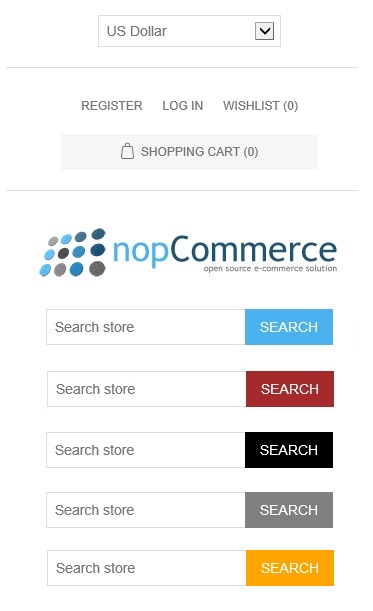
Today, we will go over the process of changing the color of top search button in nopCommerce.
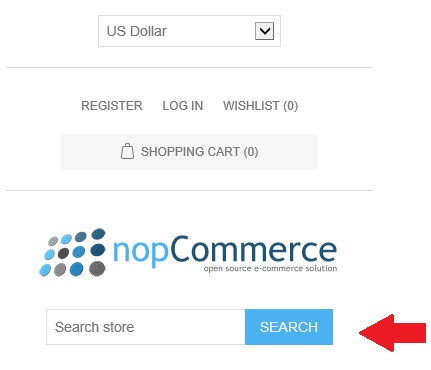
Here is the default color of top search button:
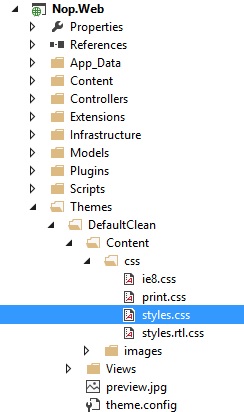
In order to make changes to the color, go to:
Nop.Web / Themes / DefaultClean / Content / css / styles.css
Open "styles.css" and look for this class ".search-box .search-box-button" - You will find this:
.search-box .search-box-button { float: left; min-width: 86px; height: 36px; border: none; background-color: #4ab2f1; padding: 0 15px; text-align: center; color: #fff; text-transform: uppercase;}Simply change the "background-color: #4ab2f1;" to any color based on your requirements.
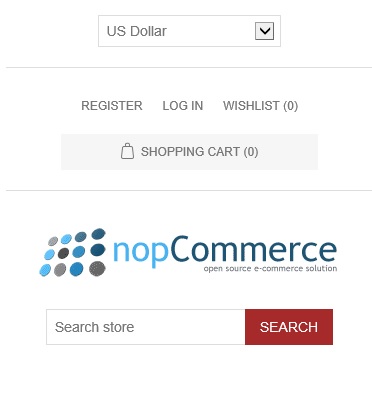
In this example, let's change the color to "brown"
.search-box .search-box-button { float: left; min-width: 86px; height: 36px; border: none; background-color: #A52A2A; /* Adding brown color code here */ padding: 0 15px; text-align: center; color: #fff; text-transform: uppercase;}Here is the result:
In a similar way, you can also change the hover color for the same button, simply look into this class in your stylesheet:
.search-box .search-box-button:hover { background-color: #248ece;}Here are a few examples of search button (with different colors):